Understand AI-Driven Conversations (Beta)
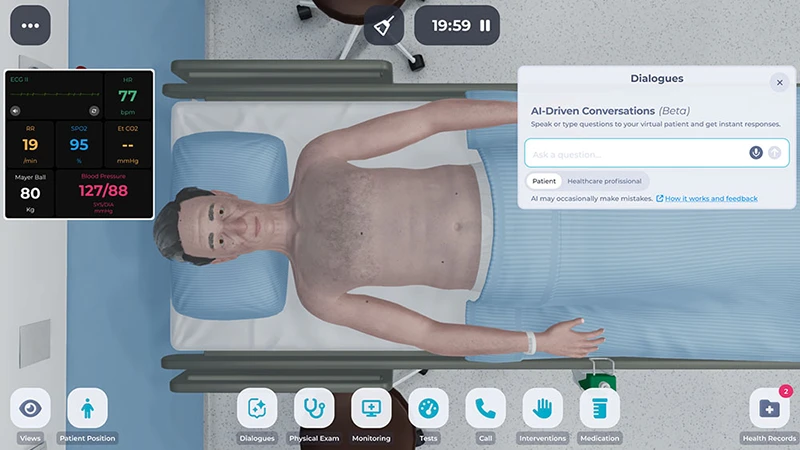
Body Interact now supports fully open-ended, AI-Driven Conversations. A major advancement that brings natural, human-like patient communication into the virtual simulation experience.
Using voice recognition or text input, users can now speak or type freely with the virtual patients, exactly as they would in a real clinical encounter.
Note: This feature is in Beta, so you might notice occasional unexpected glitches as we continue to improve the experience.
Availability and Requirements
AI-Driven Conversations is available in the following languages:
Optimized languages
English, Spanish, Japanese, Portuguese, and French.
These languages currently offer the best voice quality and the most reliable conversation output.
Additional Beta languages
Bulgarian, Polish, Russian, Italian, Ukrainian, German, Hungarian, Slovak, Czech, Romanian, and Turkish.
These languages are still being improved. Tone, fluency, voice quality, and translation accuracy may vary.
This feature requires:
- 🌐 Stable internet connection
- 🎙️ Microphone access for voice recognition (on your device and/or browser)
- 💻 The latest Body Interact software version (v2026.050 or higher)
- 🏛️ Paid institutional license
Heads up: Japanese is not available on iOS yet.
Who Has Access to This Feature?
Educators (from a licensed institution):
- You have access to this feature and can switch it ON or OFF in the Body Interact app’s Settings or in Scenario Details when selecting a scenario card.
When OFF, a pre-defined list of questions will be shown during the simulation. - To make this feature available to your students, enable it in Step 2 when creating a Simulation Session, in BI Studio. By default, this option is set to “No”.
Institutional Learners (from a licensed institution):
- You can use this feature if your educator turns it ON for your simulation session.
🚫 Not available to Independent Users (self-registered users not affiliated with a licensed institution).
How Does It Work?
- In the simulation, look for the Dialogues menu to start a conversation with the virtual patient.
- You can communicate in two ways:
- Type your questions or statements directly in the chat box.
- Speak using voice recognition by clicking the microphone button and talking.
- Make sure you enable the microphone in your device and/or browser to access this feature.
- After speaking, your words will appear in the chat box. You can review or edit the text before sending it.
- Click the arrow button to send your message. The patient will respond immediately.
Notes: Speak in short, clear sentences and try to minimize background noise for the best experience. Conversation limits may apply depending on the scenario goals.
Your Communication Assessment Score (post-simulation)
After completing the scenario, you’ll receive AI-generated feedback* to help you reflect on your communication and clinical reasoning skills.
To view your communication feedback:
- Scenario Feedback > Performance section > Global Score
- You’ll see your scores for Communication, Assessment, and Management.
- Click on the Communication score to open your AI-generated feedback.
Your communication is assessed across four domains, depending on the scenario’s learning goals:
- Initiating the Encounter and Establishing Rapport
- Information Gathering
- Information Giving and Explanations
- Closing the Encounter
For EMS-focused scenarios, feedback covers:
- SAMPLE and OPQRST assessment

* The new AI-Generated Communication Score, presented after scenario completion, is based on widely used healthcare education frameworks: the Calgary-Cambridge Guide, the SEGUE Framework, and the Kalamazoo Consensus Statement
Usage Limits and Additional Considerations
AI Conversation usage limits may vary by scenario. For example, consultation scenarios may include more messages than trauma or emergency scenarios.
You may encounter some visual inconsistencies or glitches in the conversation box. These are being addressed and will be fixed in a future update.
The system generates responses based on patterns in data and may occasionally make mistakes or produce outdated information.
AI-Driven Conversations are provided exclusively for educational and simulation purposes. They are not intended to replace professional clinical judgment, medical advice, diagnosis, or treatment. Users must always follow their institution’s applicable protocols, policies, and clinical guidelines when providing patient care.
Share Your Thoughts and Help Us Improve
Tell us about any specific issues you experienced or suggestions for improvement.
Troubleshooting on Windows 10
We’re aware of a known issue on some Windows 10 devices where the microphone icon may not appear in the simulation. For more details and troubleshooting steps, see:
This virtual-patient conversation feature is built with Llama, an AI language model developed by Meta Platforms, Inc.
Was this article helpful?
YesNo